How to Mirror Your Screen to an Android Phone or iPhone
1. Connect to the Same Wi-Fi:
Make sure both your sending device (e.g., PC, Mac, tablet, or phone) and your receiving device (Android or iOS phone) are connected to the same Wi-Fi network.
For best performance, use a 5 GHz Wi-Fi network to reduce delay and improve stability.
2. Install and open 1001 TVs on both devices
📥 Mac App: Download from App Store
📥 PC App: Download from Microsoft Store
For detailed steps, refer to the PC Installation Guide
📱 iOS App: Download from App Store
📱 Android App: Download from Google Play
3. Start mirroring
1) Mirror Phone/iPad/Android tablet to Phone
On the receiving phone, tap “Screen Receiver” and keep the device ready for connection.
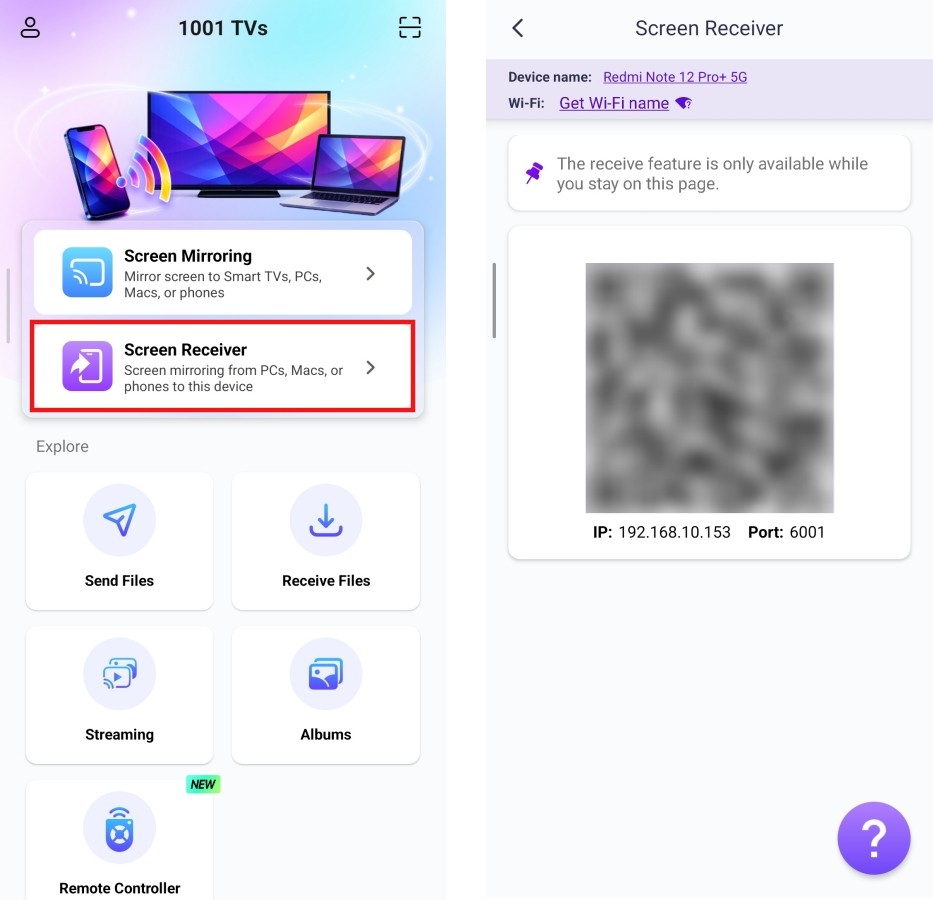
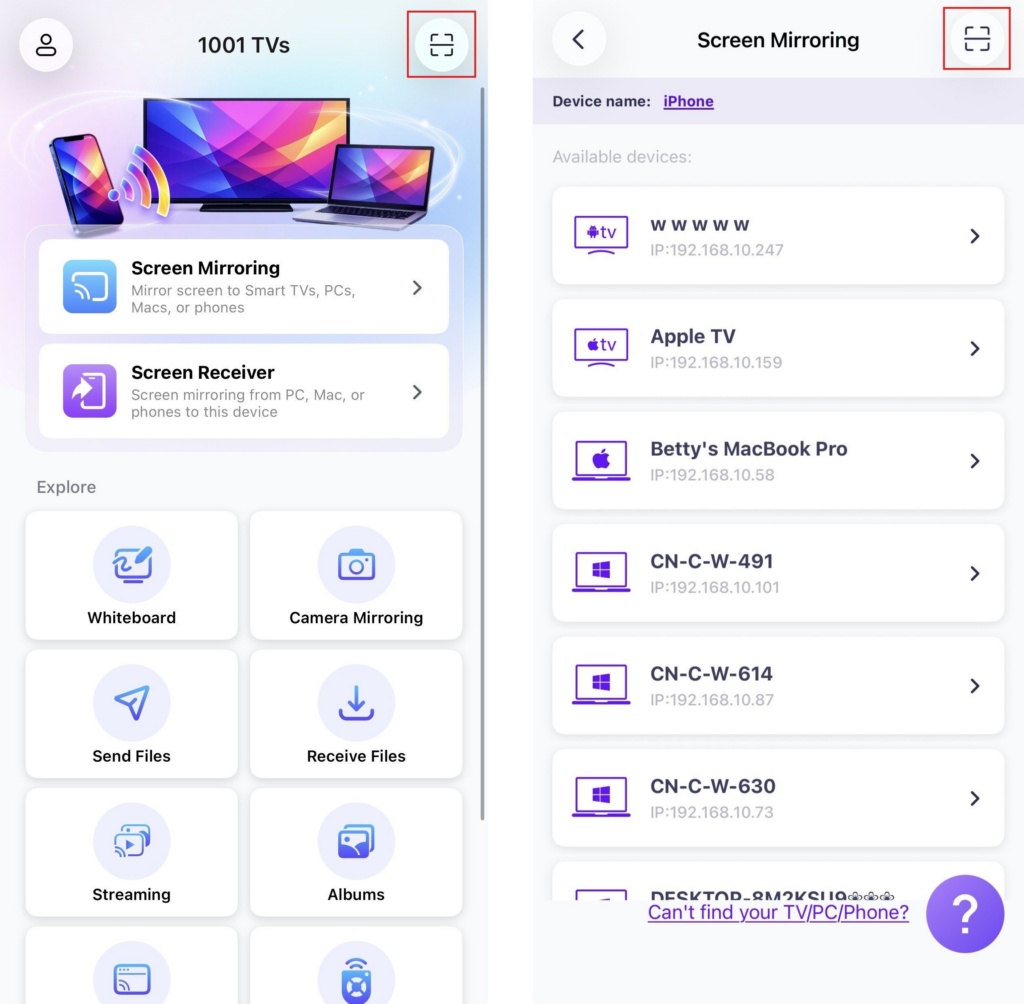
On the sending phone, choose a connection method:
• Scan the QR code on the Home screen or on the Screen Mirroring page.
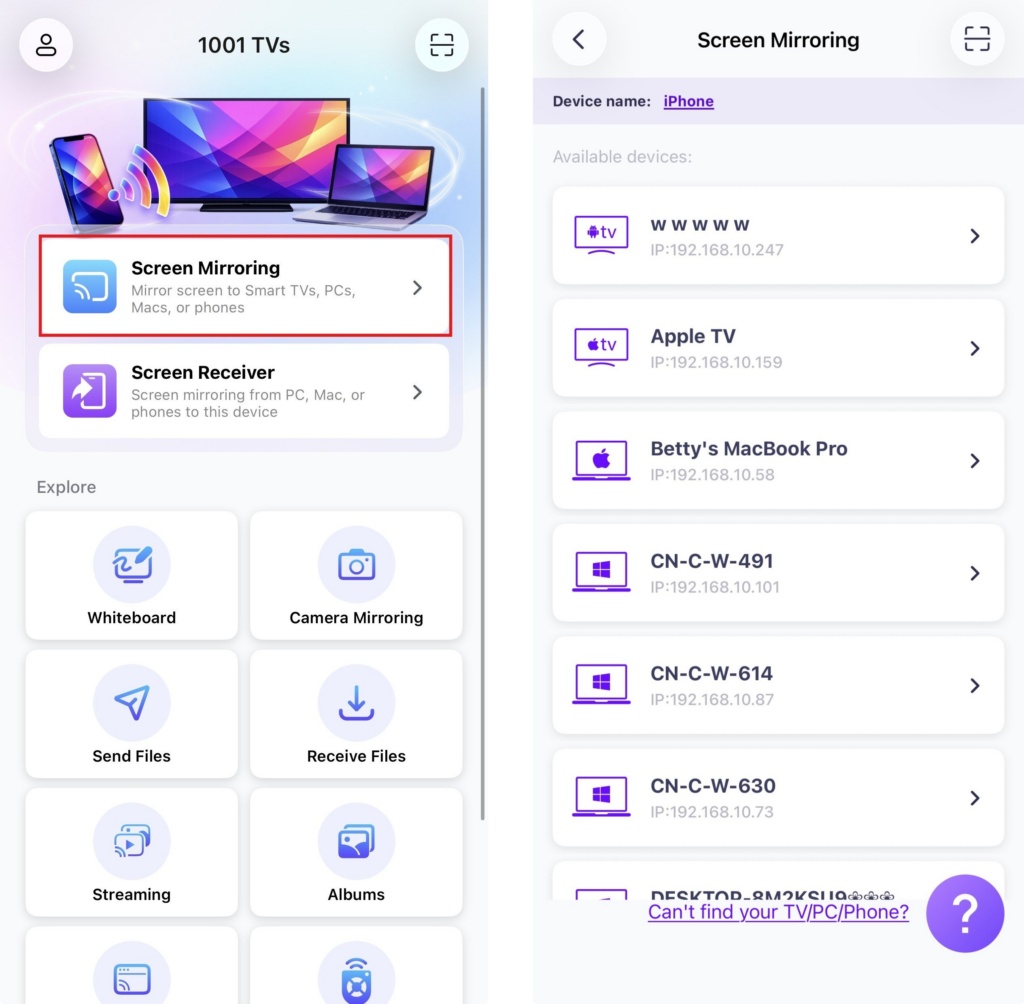
• Or tap “Screen Mirroring”, wait for the app to detect available devices, and select your target device.
2) Mirror Computer to Phone
On the receiving phone, tap “Screen Receiver” and keep the device ready for connection.
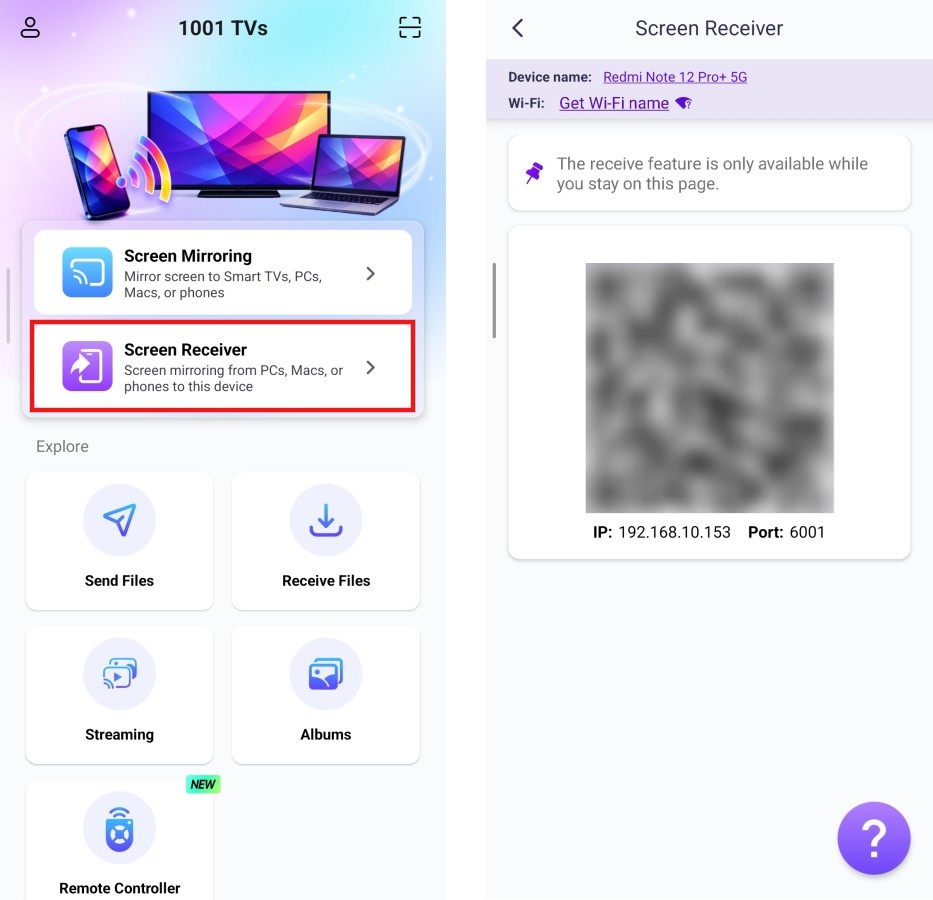
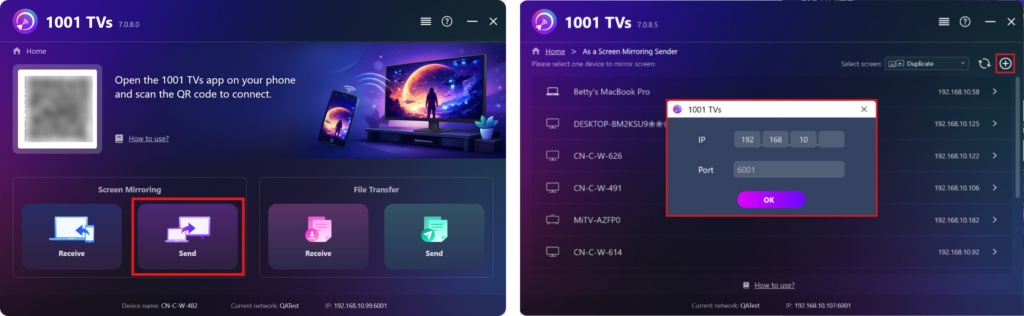
On your computer, select “Send”.
Click the + icon in the top-right corner, then enter the IP address shown on your phone.
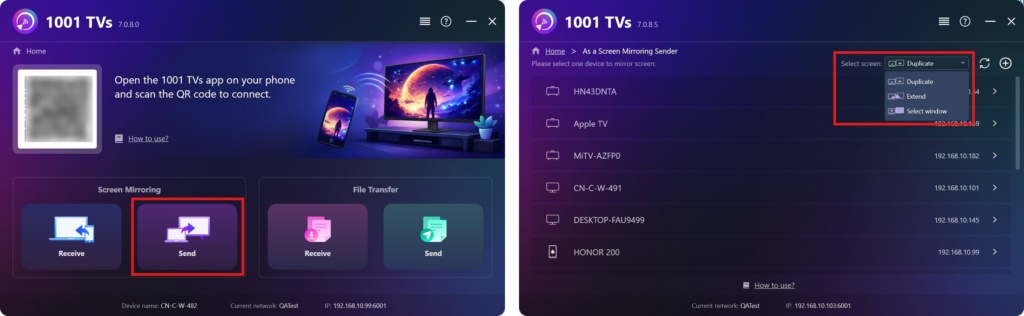
- Windows supports the following screen modes: “Duplicate“, ”Extend“, or ”Select Window“
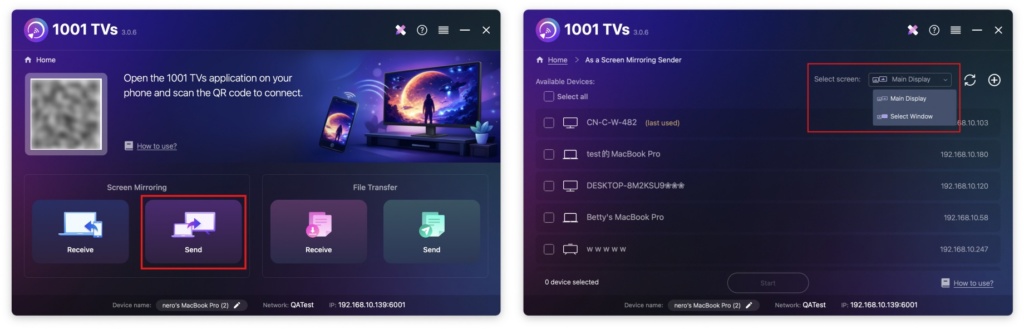
- Mac supports the following screen modes: ”Main Display“ or ”Select Window“
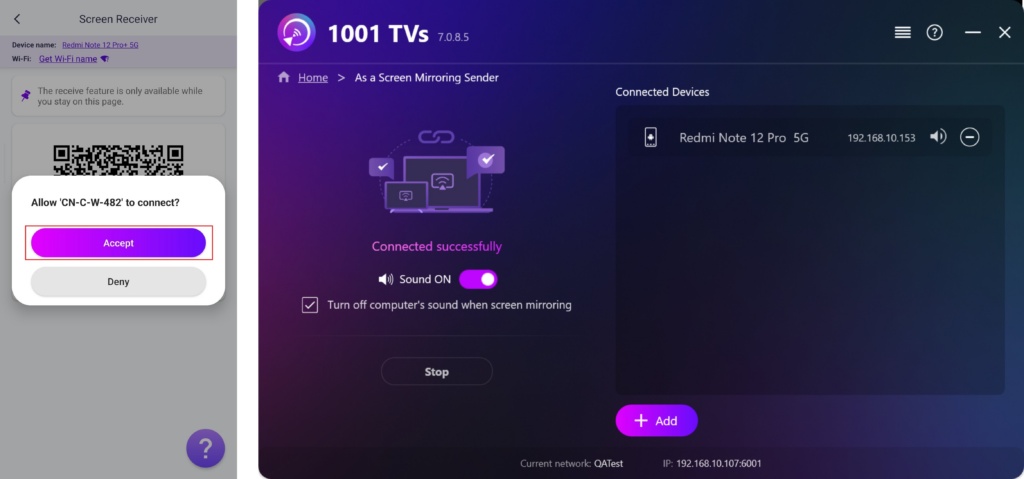
On the receiving phone, tap ”Accept“ to confirm the request and start mirroring.
Get 1001 TVs Now!
📥 Mac App: Download from App Store
📥 PC App: Download from Microsoft Store
For detailed steps, refer to the PC Installation Guide
📱 iOS App: Download from App Store
📱 Android App: Download from Google Play

Read More
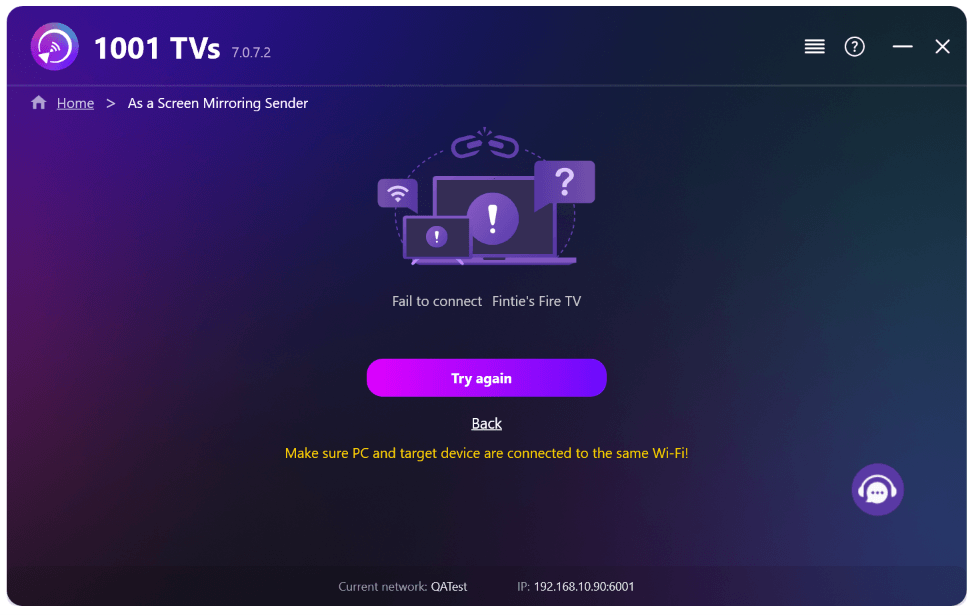 New Setting: No More Pop-ups When Mirroring Ends
When you're mirroring your PC screen to a TV and stop the session using the TV remote, the 1001 TVs window pops back up…
New Setting: No More Pop-ups When Mirroring Ends
When you're mirroring your PC screen to a TV and stop the session using the TV remote, the 1001 TVs window pops back up…
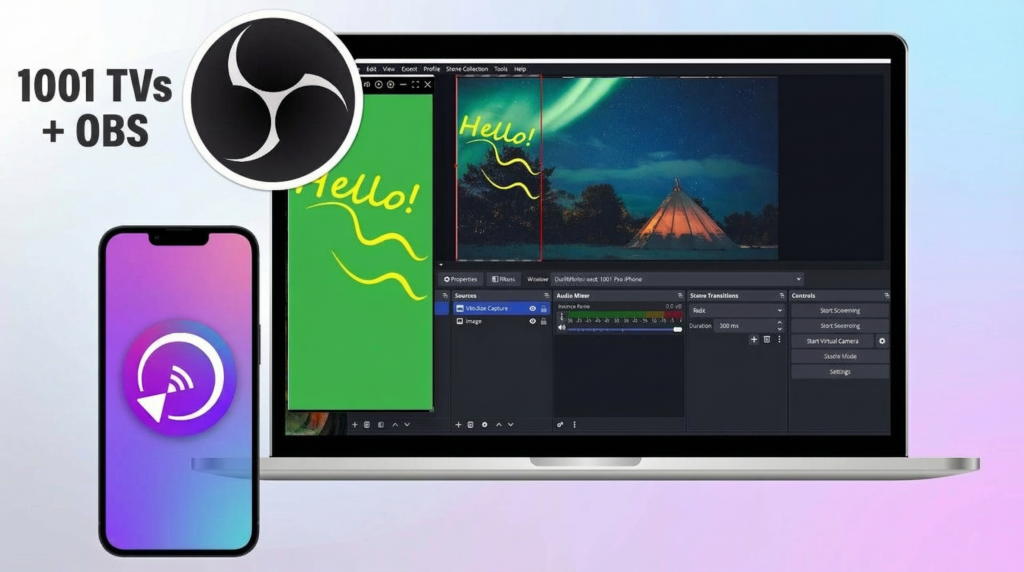 How to Capture Screen Mirroring in OBS (Android & iPhone)
Want to capture screen mirroring in OBS for mobile gameplay, tutorials, or live content? With 1001 TVs, you can easily mirror your phone screen…
How to Capture Screen Mirroring in OBS (Android & iPhone)
Want to capture screen mirroring in OBS for mobile gameplay, tutorials, or live content? With 1001 TVs, you can easily mirror your phone screen…

